

🎙️ Podcast - Audio Summary
📺 Video Summary
📑 Slides
📝 Deep Dive: 7 Claude Code Features Every Developer Needs
1. Introduction: The Evolution of the Coding Agent
One of the most persistent frustrations in AI-assisted development is the "context wall." You spend hours guiding an AI through a complex refactor—perhaps a large-scale React state migration or a Python dependency audit—only for it to forget the project’s architectural rules or, worse, make a sweeping, messy change that is difficult to undo. These unrecoverable mistakes often make developers feel they are spending more time babysitting the AI than writing code.
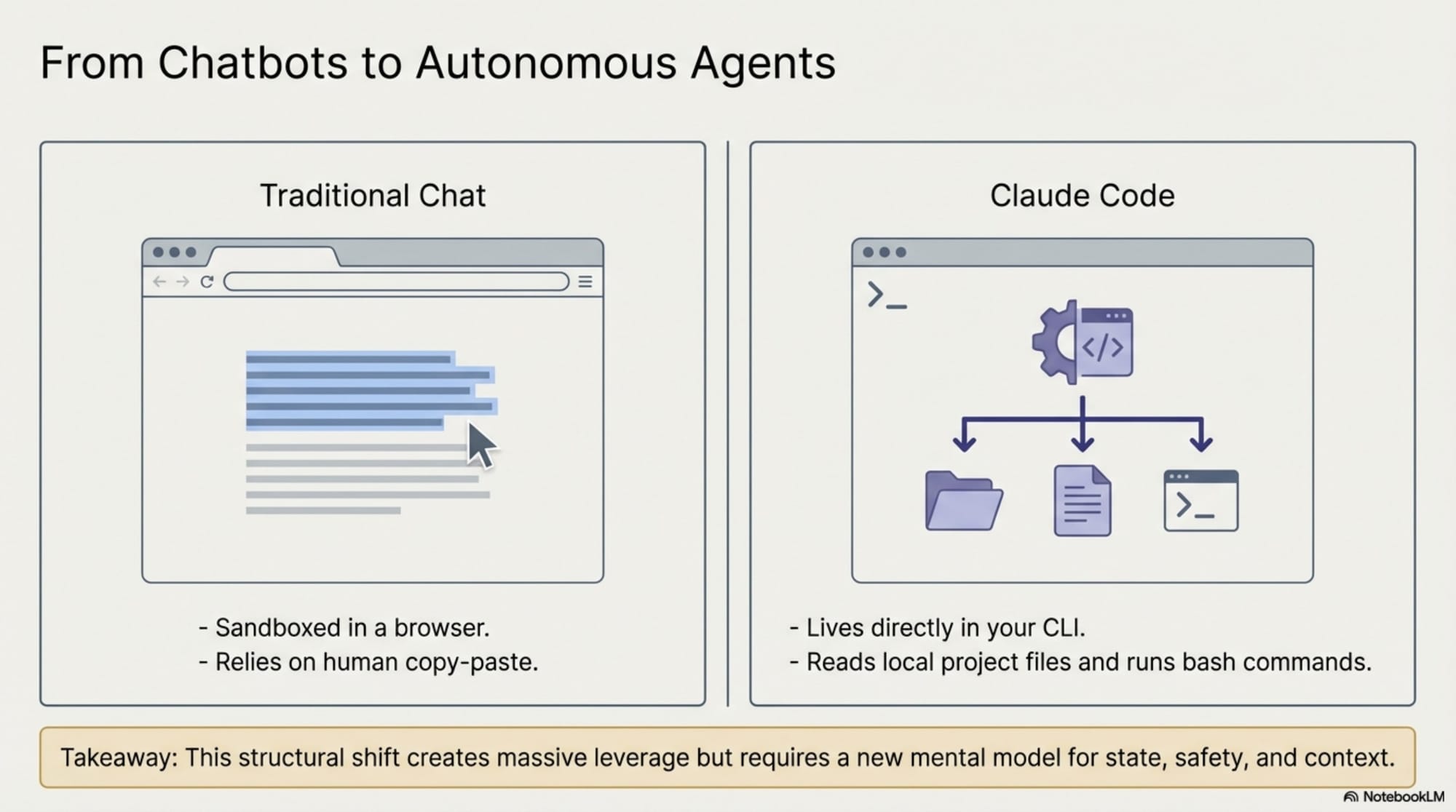
Claude Code represents a paradigm shift in the developer’s IDE. It is not merely a chat interface; it is a structured environment designed for professional engineering. By moving beyond simple code generation and into the realm of agentic orchestration, it provides the guardrails and memory necessary for high-stakes, professional development.
2. The Project’s "Permanent Memory": CLAUDE.md
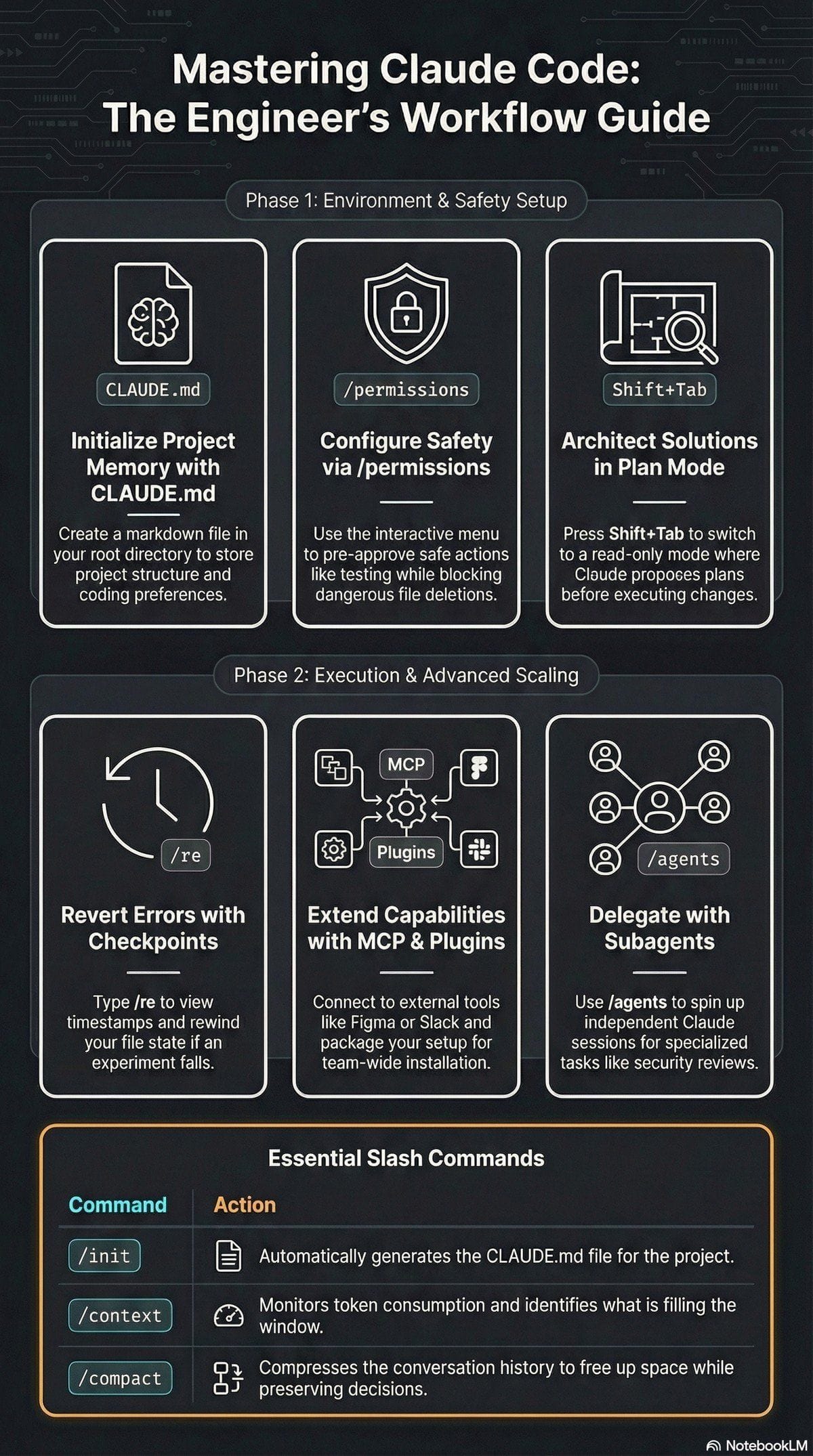
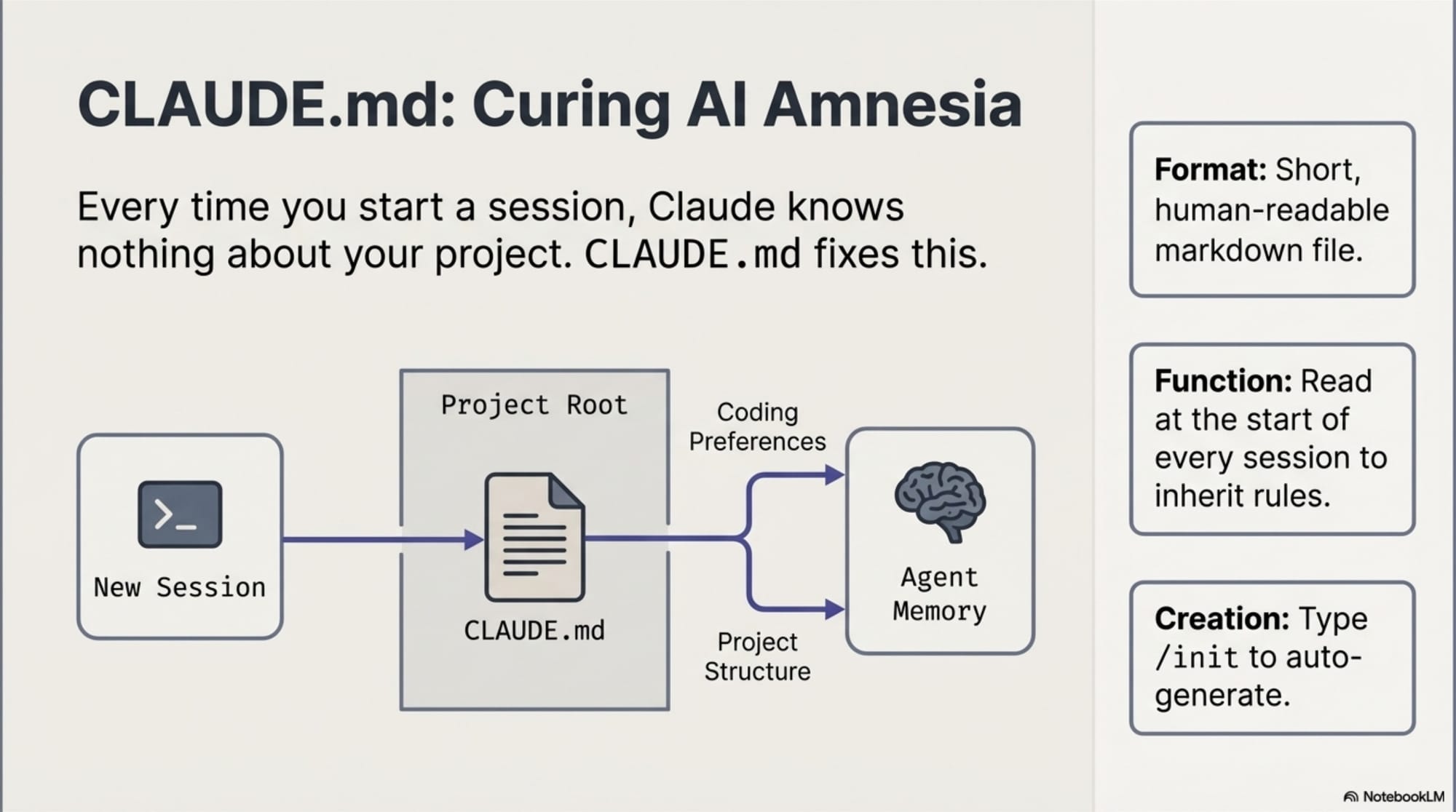
Every time you initiate a new session with a standard AI, it begins with a blank slate, unaware of your specific project structure or style preferences. CLAUDE.md solves this "cold start" problem by serving as a persistent memory bank located in your project root.
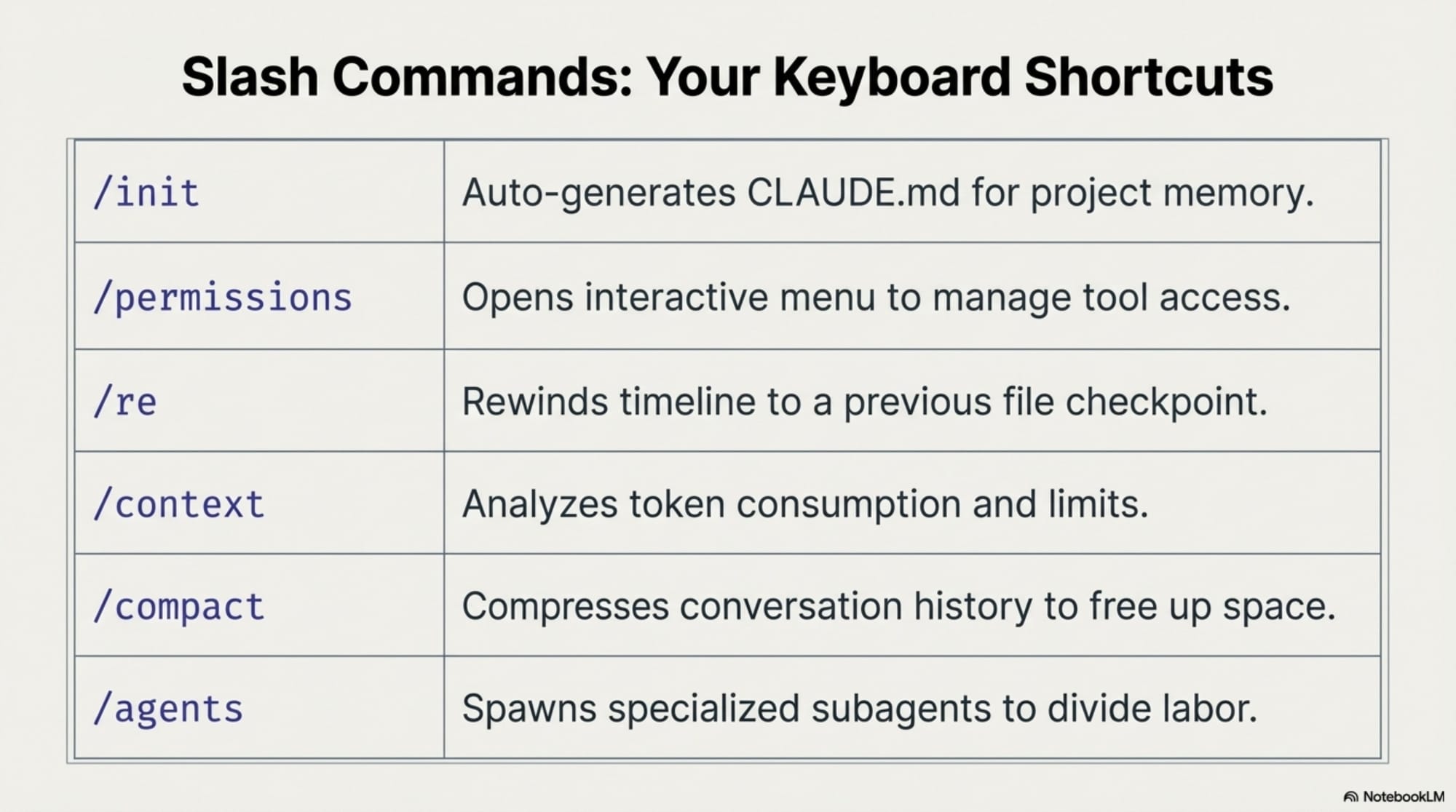
Claude reads this file at the start of every session to understand your requirements, such as "always write unit tests" or "use functional components over classes." The file has no strictly required format—it only needs to be human-readable and concise. You can generate one automatically by typing /init in your terminal session.
"Every time you start a new session Cloud knows nothing about your project structure and your coding preferences... cloudmd fixes this."
Analysis: The "memory" issue has long been the primary hurdle in AI pair programming. By centralizing coding preferences and structural maps in a single file, CLAUDE.md creates an idempotent-like environment where the agent remains aligned with the project's standards without requiring repetitive prompting or "re-briefing." This solves the cognitive load of constantly reminding the AI of your architectural constraints.
3. Planning Before Doing: The Power of Plan Mode
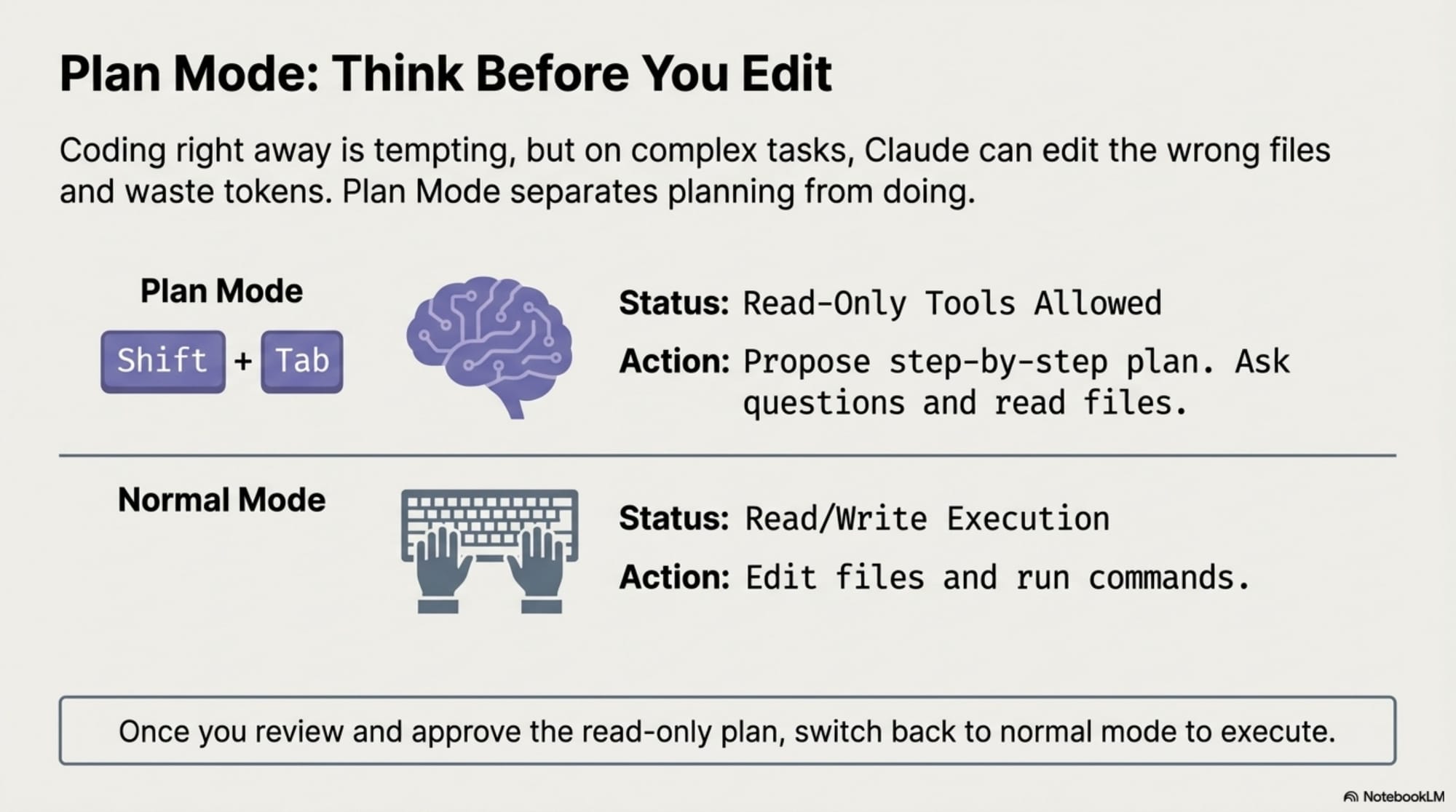
It is often tempting to let an agent start coding immediately, but on complex tasks, this leads to editing the wrong files and wasting valuable tokens. Claude Code introduces "Plan Mode" (accessible via Shift + Tab) to separate strategy from execution.
In Plan Mode, Claude is restricted to read-only tools. It can examine your codebase, ask clarifying questions, and propose a step-by-step plan for your approval, but it cannot modify any files. Once you have reviewed and signed off on the strategy, you switch back to normal mode for execution.
Analysis: This structured workflow significantly reduces the risk of "token waste" and accidental edits in complex microservices. By enforcing a "think-before-you-act" phase, Claude Code ensures that the agent’s actions are deterministic and verified, rather than speculative.
4. The Safety Net: Automated Checkpoints
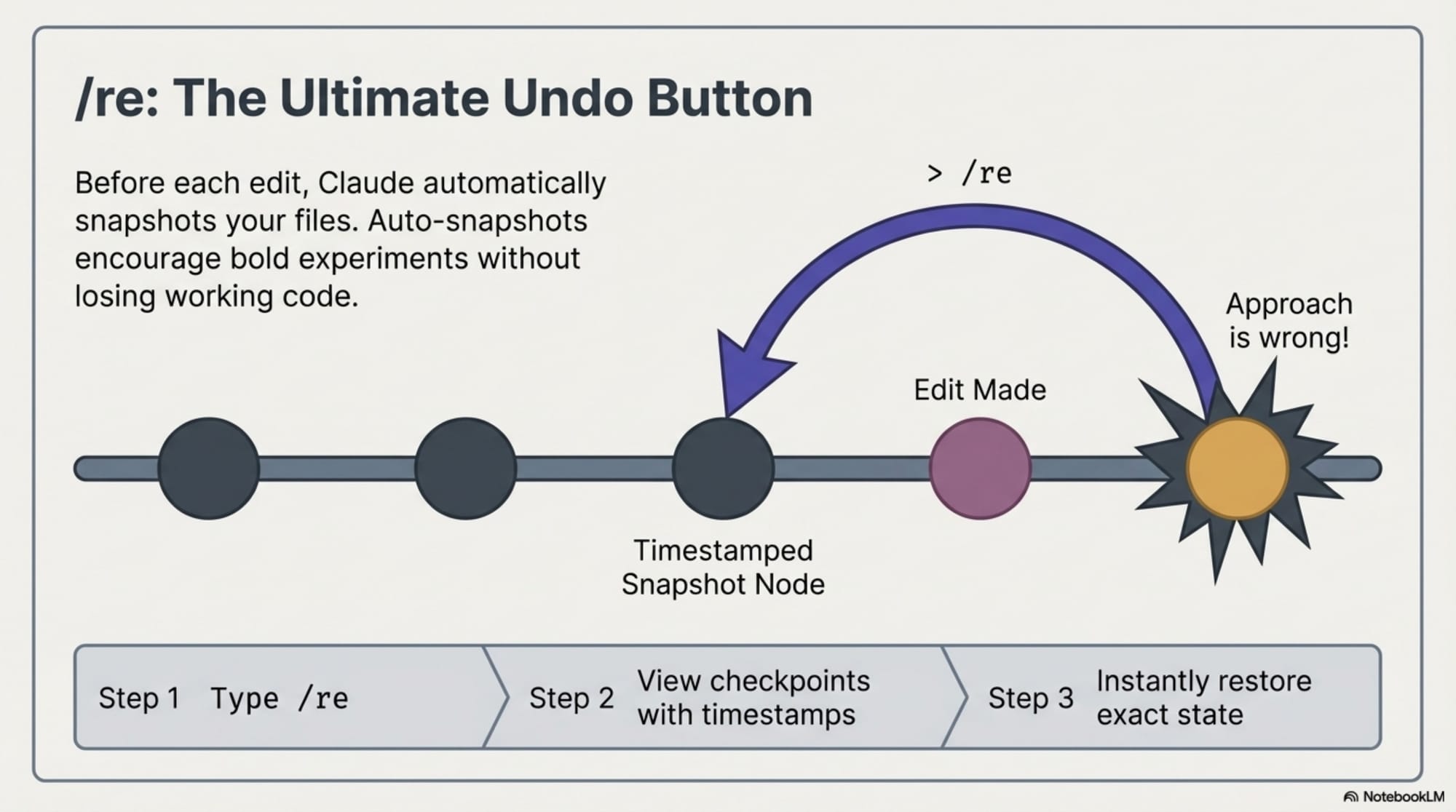
When an AI refactors multiple files and the approach turns out to be flawed, engineers are often left with a manual cleanup nightmare. Claude Code mitigates this risk with an automated snapshotting system. Before every edit, the tool creates a checkpoint of the current state of your files.
By using the /rewind command, you can view a list of these checkpoints, complete with timestamps and descriptions. This allows you to restore the codebase to an exact previous state instantly.
"checkpoints let you try bold experiments and explore risky ideas without losing working code."
Analysis: This feature fundamentally alters developer psychology. When the cost of failure is reduced to a single command, engineers are free to pursue a "fail-fast" mentality, exploring architectural changes or risky refactors they might otherwise avoid due to the manual effort required to revert them.
5. Trust but Verify: The Permissions Framework
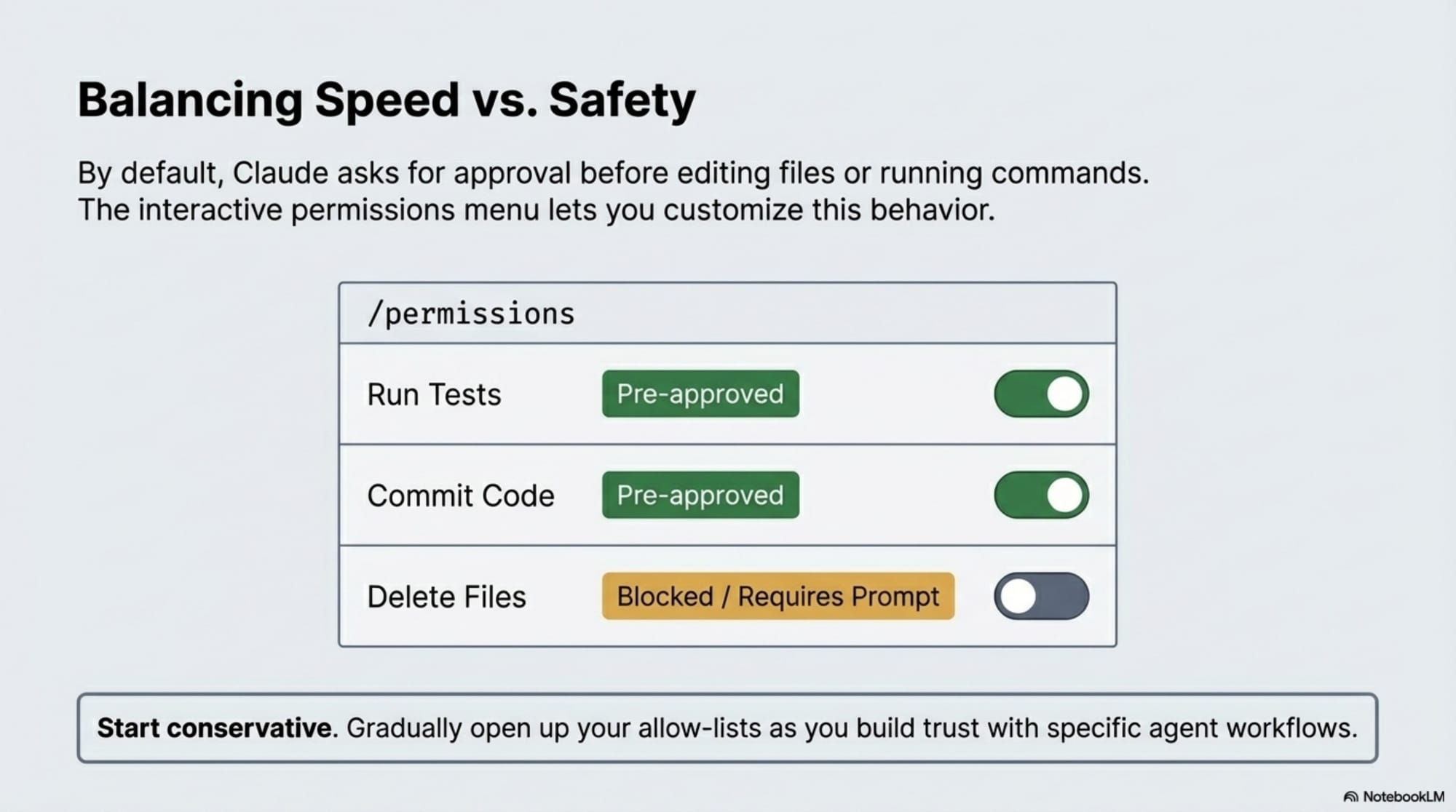
Agentic tools are powerful but inherently risky because they can run bash commands and edit files on your local machine. Claude Code balances this power with a robust permissions framework. Using the /permissions menu, you can manage an interactive "allow list" of tools.
This framework allows you to pre-approve safe, repetitive actions—such as running tests or committing code—while explicitly blocking or requiring manual approval for high-risk actions like deleting files.
Analysis: This promotes a "gradual trust" workflow in agentic engineering. You can start with conservative settings and slowly open permissions as you build confidence in the agent’s reliability, effectively scaling the agent's autonomy alongside your comfort level.
6. Breaking the Silo: The Model Context Protocol (MCP)
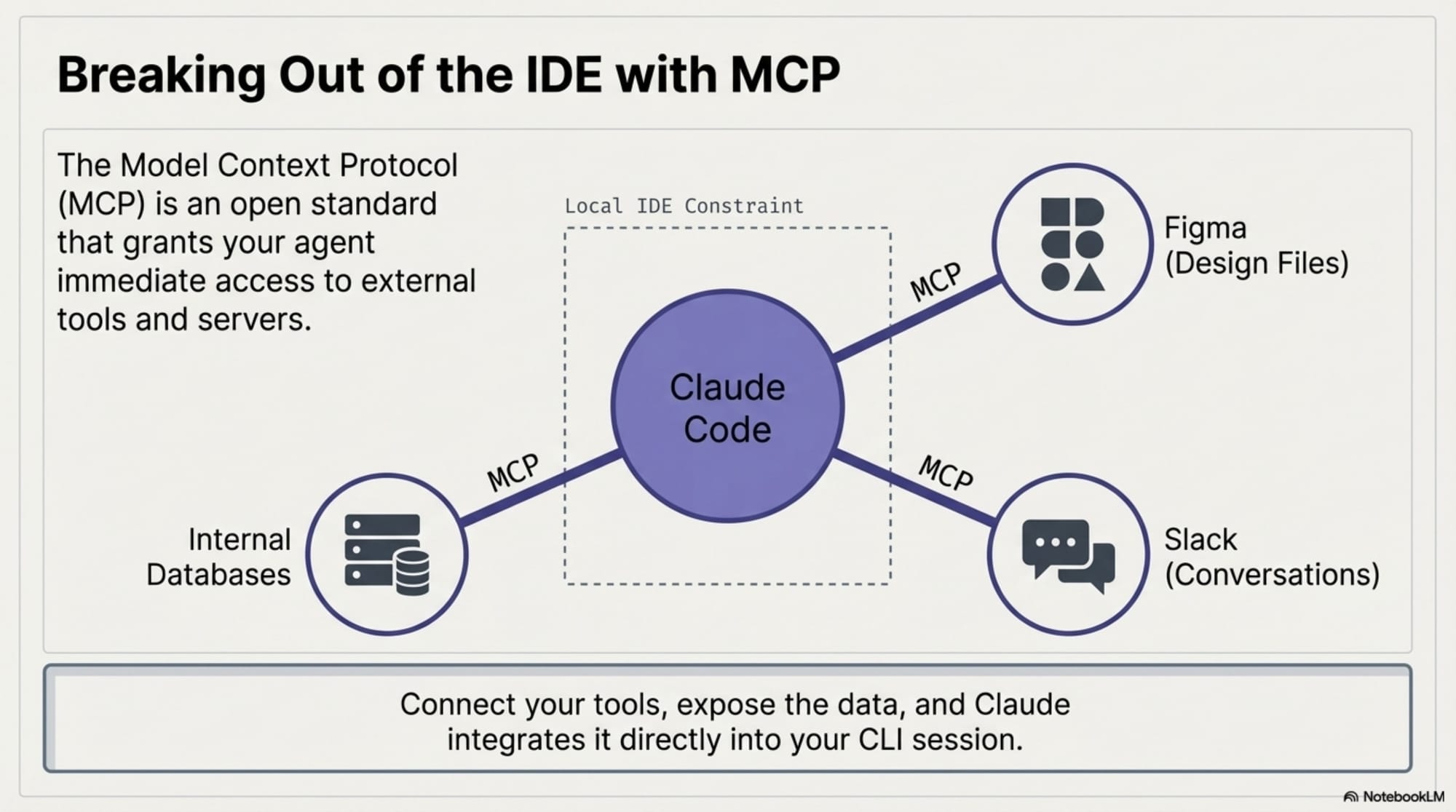
Traditionally, coding agents have been limited to the files on your hard drive. The Model Context Protocol (MCP) is an open protocol that breaks this silo, allowing Claude to interact with external data sources seamlessly.
Through MCP servers, Claude gains immediate access to thousands of publicly available tools, such as Figma design files or Slack communication threads.
Analysis: This is a massive leap forward, moving the agent from a "code-only" tool to a comprehensive "knowledge-worker" tool. By integrating design context and team communications directly into the development session, the agent gains a holistic understanding of the project that extends far beyond the syntax of the code, allowing it to understand why a change is being made, not just how.
7. Divide and Conquer: Using Subagents for Complex Tasks
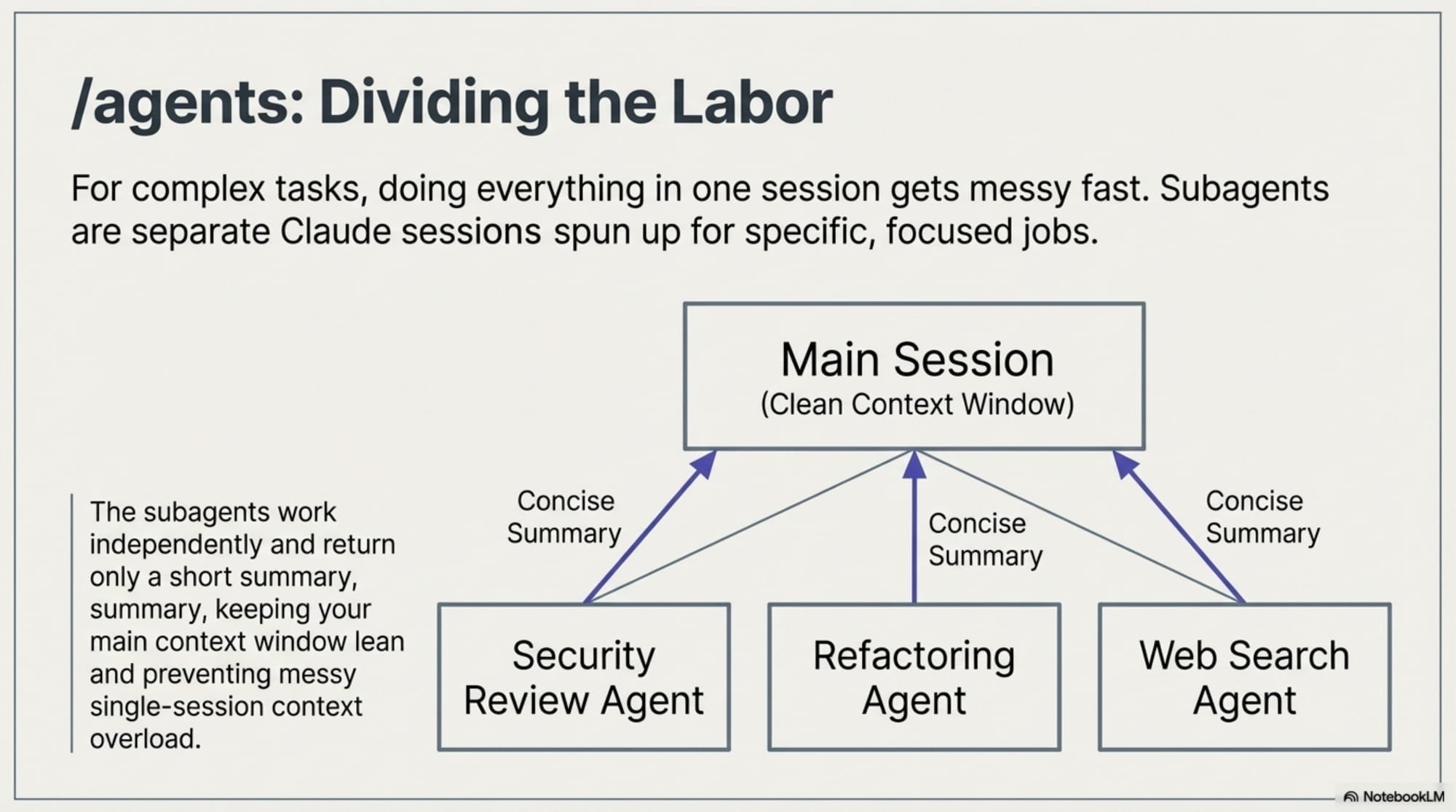
For massive tasks, a single conversation thread can quickly become cluttered and inefficient. Claude Code addresses this through the use of subagents, triggered by the /agents command.
A subagent is a separate Claude session dedicated to one specific, focused job—such as performing a security review or exploring a specific third-party library. The main agent delegates these tasks to subagents, which work independently and return only a short summary of their findings to the primary session.
Analysis: This parallelization keeps the main context window "lean" and prevents the messiness that typically arises from heavy exploration. It allows the lead agent to act as a project manager, delegating specialized expertise to sub-processes without polluting the primary workspace.
8. Managing the 200k Token Limit: Context Compaction
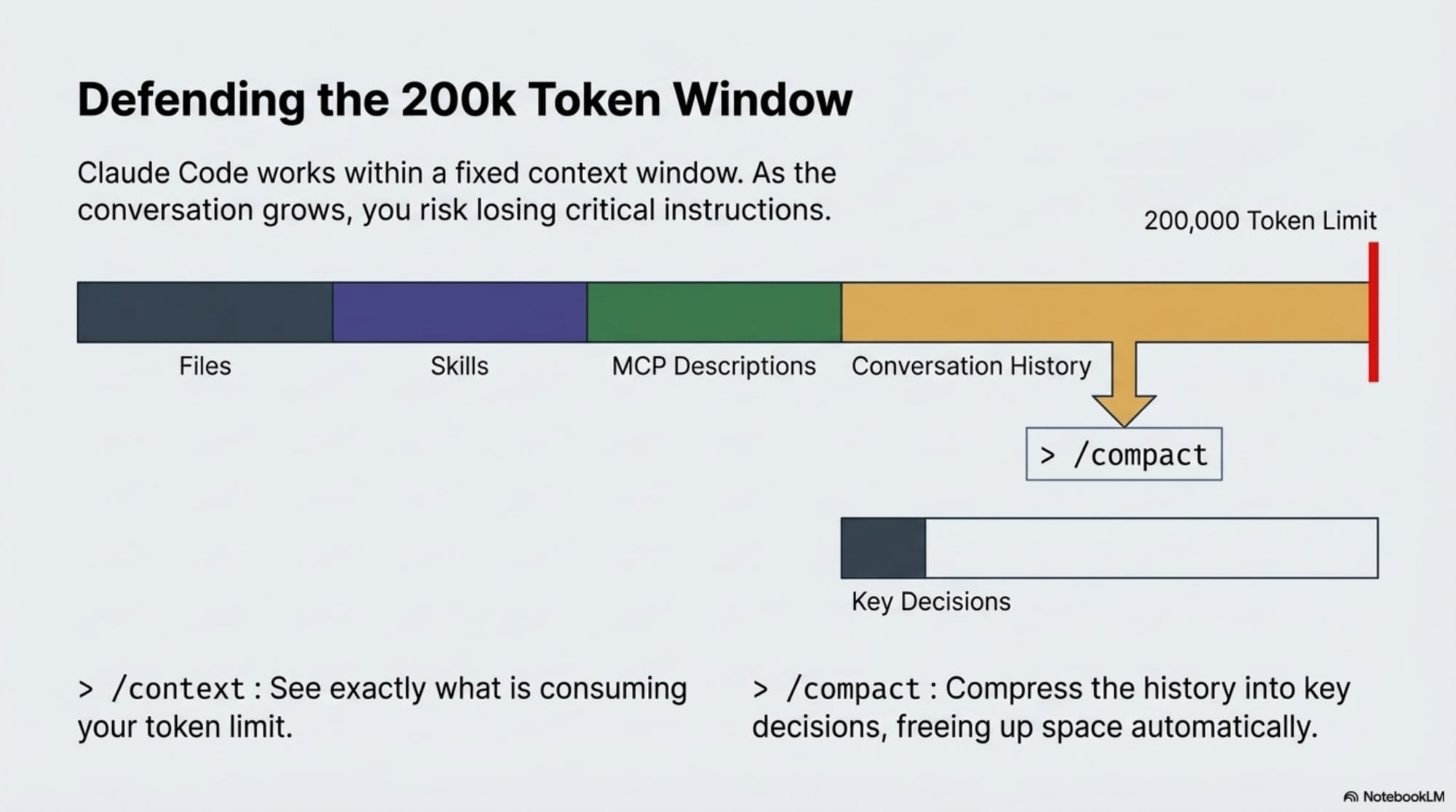
Claude Code operates within a fixed context window of approximately 200,000 tokens. As a session progresses, this window fills up with file data, active skills, and conversation history. You can monitor this consumption using the /context command, which provides a detailed breakdown of what is eating your window.
To prevent the agent from automatically discarding potentially important information when the limit is reached, you can use the /compact command. This allows you to proactively condense the conversation, preserving key decisions and architectural conclusions while freeing up space for new work.
Analysis: Proactive context management is essential for preventing the "hallucinations" and performance degradation that occur when the context window becomes "noisy" or saturated. By explicitly managing what Claude remembers, you ensure that critical project insights are preserved during long-running development sessions.
9. Conclusion: The Future of Project-Based AI Engineering
We are witnessing a fundamental shift in how engineers interact with artificial intelligence. The paradigm is moving away from using AI as a high-powered search engine or a simple code-snippet generator and toward using it as a sophisticated "system orchestrator."
The emergence of these automated guardrails, planning tools, and project-based learning cohorts suggests a future where AI engineering is highly structured and professionalized. As these tools take over the burden of manual undoing, context management, and routine formatting, the role of the engineer evolves from a writer of lines to an architect of systems.
How will you reallocate the significant time and cognitive energy saved by these advanced orchestration features to build more ambitious, complex systems?
📄 Briefing Doc: Technical Analysis
📋 Technical Specifications & Detailed Analysis
1. Introduction: Your New Coding Partner
Welcome to the frontier of software engineering. As you begin working with AI coding agents like Claude Code, it is essential to frame your relationship correctly: you are not being replaced; you are gaining a highly capable "apprentice."
An AI agent is a collaborator that operates within a workflow loop—it analyzes your request, decides which tools to call, executes them, and repeats the process until the task is complete. While it can read your files, run terminal commands, and automate complex sequences, it remains a subordinate to your lead. It primarily acts with your explicit permission, ensuring you maintain total creative and technical oversight.
To work effectively, this apprentice needs to understand your unique environment. This begins with how the agent "remembers" your project from one session to the next.
2. Project Memory: The Power of CLAUDE.md
Every time you start a new session, the AI agent is effectively a "blank slate." It has no inherent knowledge of your specific project structure or your personal coding style. To bridge this gap, we use CLAUDE.md.
What is CLAUDE.md?
Located in your project's root directory, CLAUDE.md serves as the agent's primary memory bank. At the start of every session, the agent reads this file to instantly understand the "rules of the road" for your codebase.
The "So What?"
Without this memory file, you would waste valuable time (and tokens) re-explaining your preferences in every chat. By running the /init command, you can automatically generate a template for this file. Note for developers: There is no required format for CLAUDE.md. The priority is simply that the content remains short, human-readable, and clear.
Defining Your Rules: Common Project Instructions As a Lead Designer, I recommend starting with these three types of rules to guide your apprentice:
- "Always write unit tests using Vitest before submitting a final refactor."
- "Maintain a flat folder structure inside
/src/components." - "Use PascalCase for all React components and camelCase for helper functions."
Once your agent understands the "how" through its memory, you can begin teaching it the "what" through specific automation skills.
3. Teaching Your Agent Skills: Automation on Demand
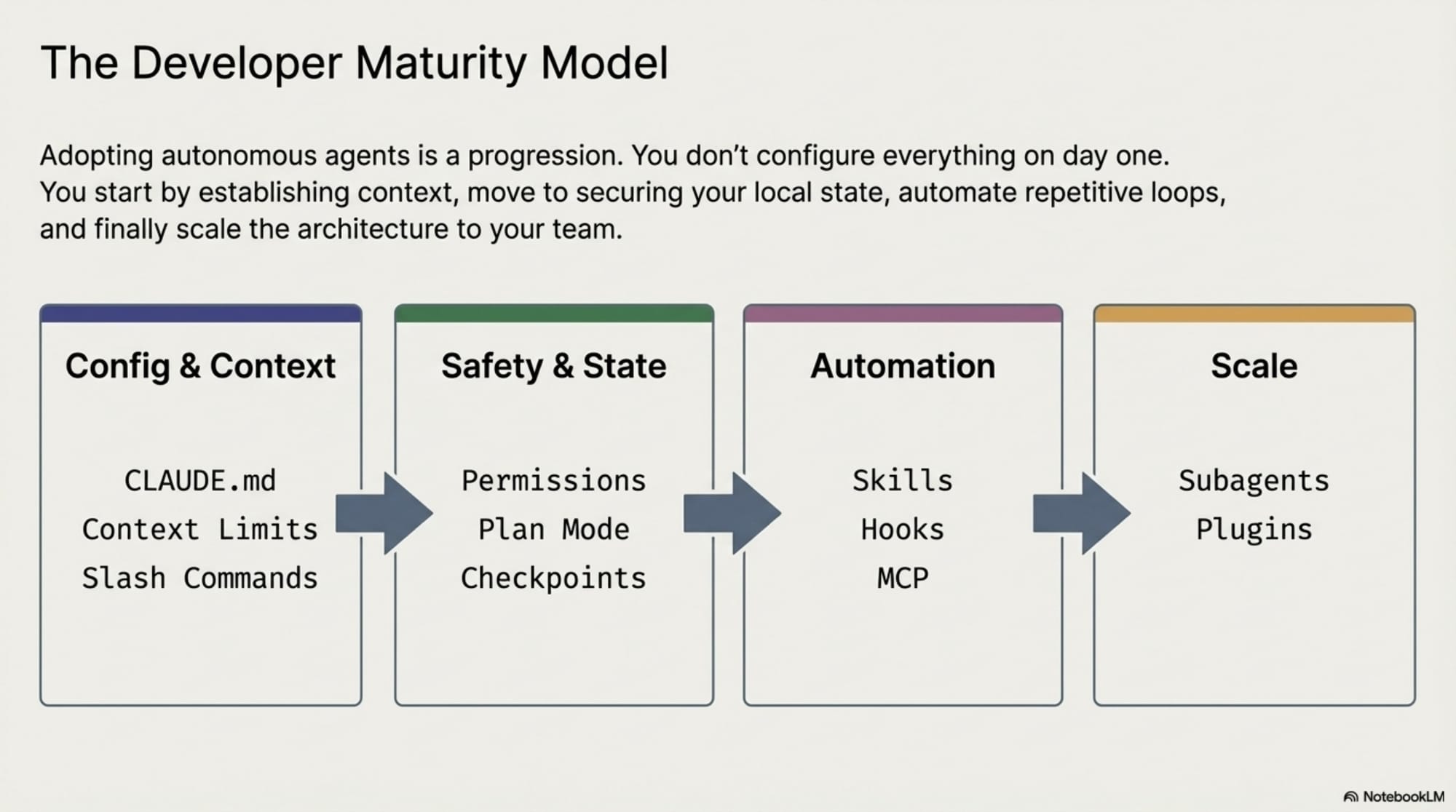
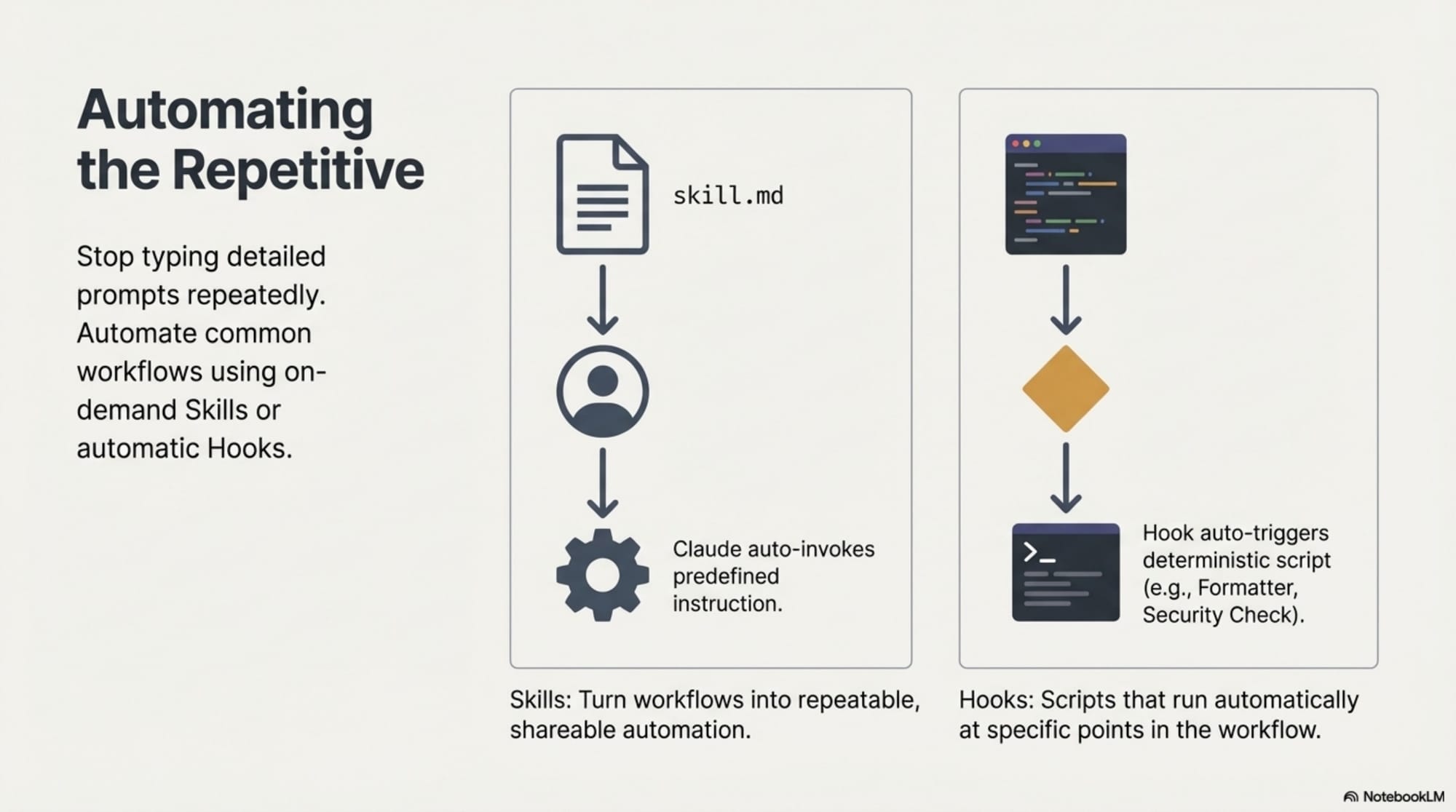
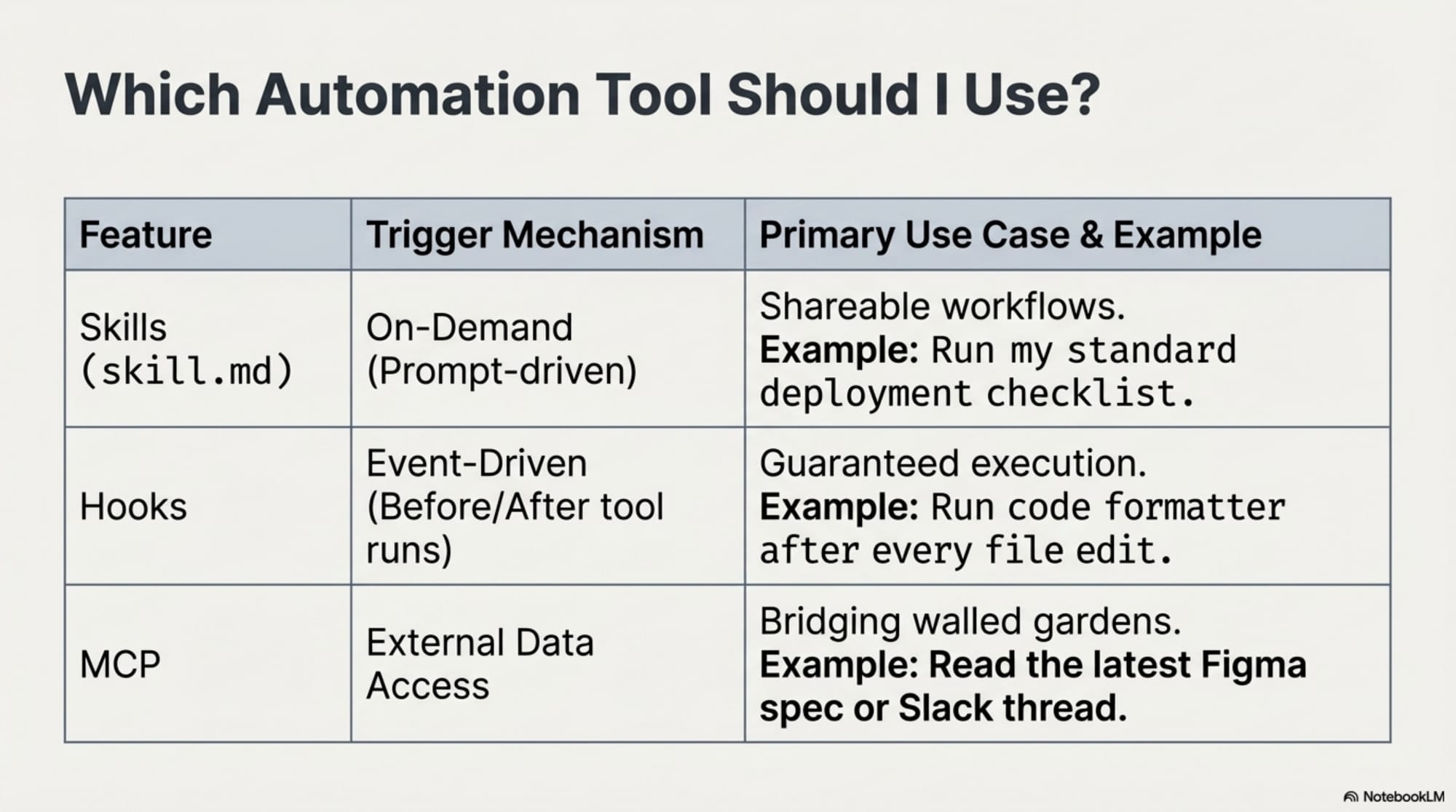
In this ecosystem, Skills are predefined instructions that transform repetitive workflows into one-step automations. These are stored in skills.md files, providing the agent with a name, description, and specific logic for a task.
| Feature | Standard Interaction | Using Skills |
|---|---|---|
| Effort | Manually typing long, detailed prompts for every task. | Auto-invoking instructions based on the skill name. |
| Consistency | High risk of human error or omitting steps in prompts. | High—the agent executes the exact same workflow every time. |
| Efficiency | Slower; requires constant guidance. | Turns complex, repeated tasks into sharable automation. |
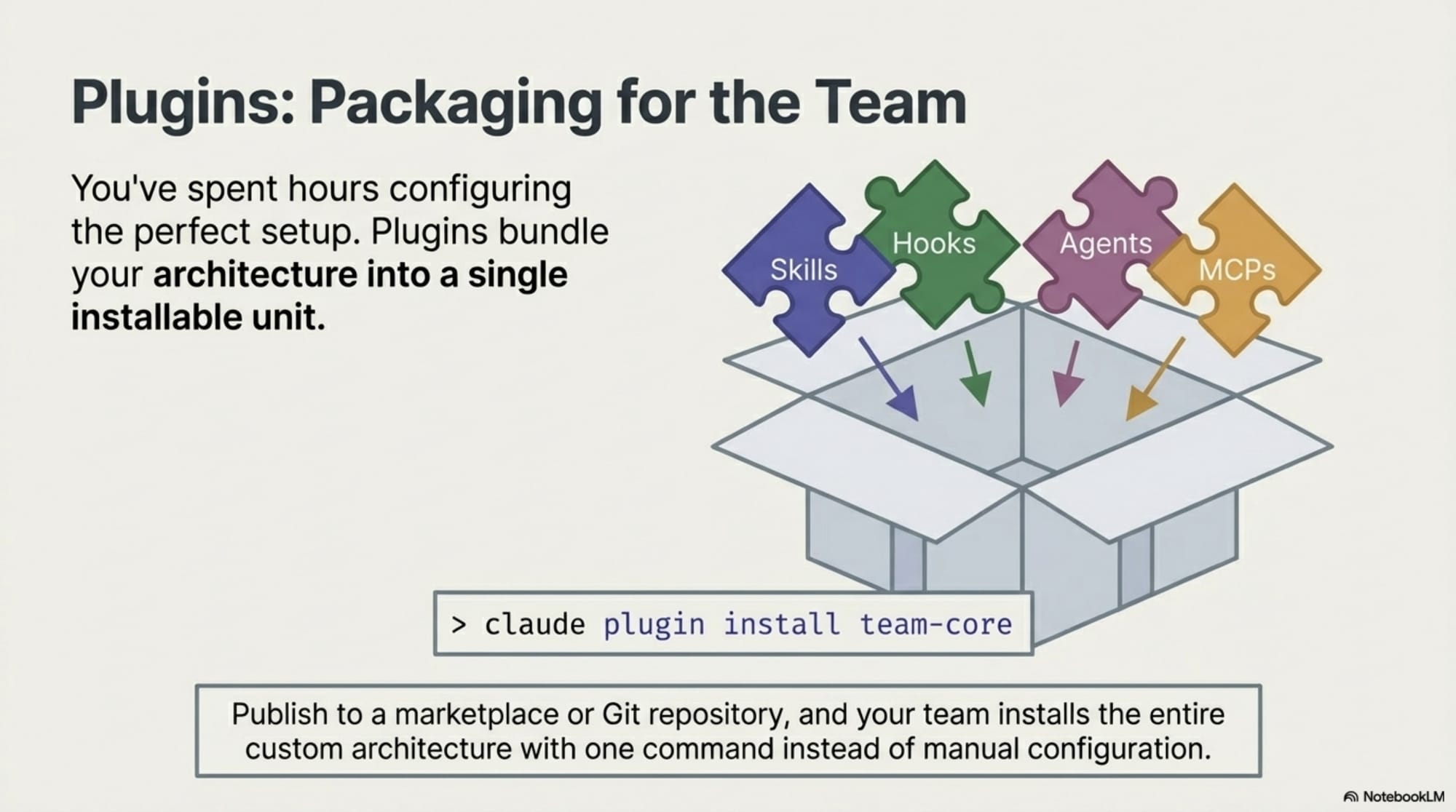
Key Insight: Skills are the building blocks of team efficiency. You can package skills, hooks, and MCP servers into Plugins—bundles that allow your entire team to install your optimized workflows via a single command or Git repository.
While skills provide power, safety features ensure that power is never used unintentionally.
4. Staying in Control: Safety, Planning, and "The Undo Button"
To manage your agent effectively, you must master Slash Commands—keyboard shortcuts designed to trigger common workflows and safety protocols.
1. Permissions & The /permissions Menu
Efficiency requires a balance of speed and safety. By using the /permissions menu, you can customize the agent's level of autonomy:
- Pre-approve safe actions: Allow the agent to run tests or check git status without asking.
- Block dangerous actions: Prevent the agent from deleting files or sensitive directories entirely.
- The Strategy: Start conservatively and gradually grant more freedom as the agent proves its reliability within your specific workflow.
2. Plan Mode
Complex tasks shouldn't begin with code edits. By pressing Shift + Tab, you enter Plan Mode.
- The "So What?": In this mode, only "read-only" tools are permitted. The agent will analyze the codebase and propose a step-by-step plan. This prevents the agent from "wasting tokens" or editing the wrong files before you have approved its logic.
3. Checkpoints (The /re Command)
Think of Checkpoints as your project’s "Undo Button." Before every edit, the agent takes a snapshot of your files.
- If an experiment fails, simply type
/reto see a list of timestamps and descriptions. - You can "rewind" your project back to any previous state, allowing you to explore bold, risky ideas without the fear of breaking your working code.
5. Advanced Concepts: Expanding the Agent’s Reach
As your projects scale, you can extend the agent’s capabilities through specialized tools:
- Subagents: Use the
/agentscommand to create a focused session for a specific task (like a security review). This keeps your main conversation clean and specialized while the subagent works in parallel. - MCP (Model Context Protocol): This protocol connects your agent to external data sources, such as Slack messages or Figma designs, allowing it to reason across your entire tool stack.
- Hooks: These are scripts designed for deterministic actions—tasks that must always happen exactly the same way, such as formatting code or running a security scanner immediately after a file is saved.
6. Managing the Conversation: Context and Compactness
Every AI agent has a context window—a limit to how much information it can "think about" at once. For Claude Code, this is approximately 200,000 tokens.
This window isn't just filled by your chat; it also consumes space for CLAUDE.md rules, tool descriptions, and MCP server metadata. To keep your apprentice sharp:
- Use
/context: Check exactly what is consuming your tokens. - Use
/compact: When the window gets full, this command summarizes the conversation history, preserving key decisions while clearing out old data to make room for new work.
7. Summary Checklist for Success
To ensure a successful start with your AI coding apprentice, follow these steps for every new project:
- Initialize Memory: Run
/initto create yourCLAUDE.mdfile and document your project preferences. - Define Boundaries: Configure your
/permissionsto balance safety and development speed. - Think Before Acting: Use Plan Mode (
Shift + Tab) for any task involving more than one file to save tokens and ensure accuracy. - Utilize Checkpoints: Don't hesitate to use
/reif an approach feels wrong; the snapshot system is there to protect your progress. - Monitor Your Context: Use
/contextand/compactregularly to ensure the agent doesn't lose sight of your primary goals.
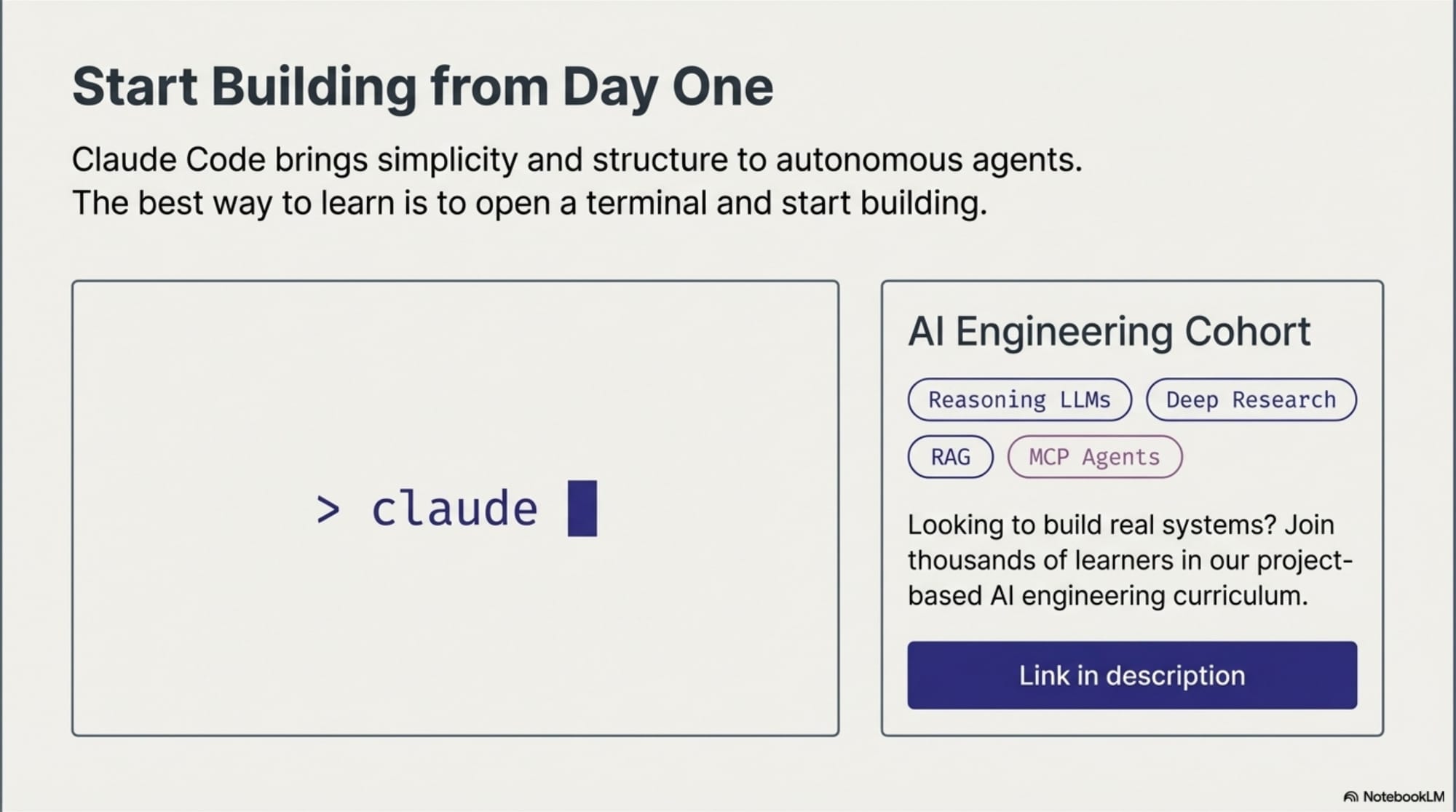
The transition from "writing code" to "engineering systems" starts now. Open your terminal, type claude, and start building.

